Understanding Claude Code's Context Window
I’ve been using Claude Code for some time now, and as I discussed in How I Use Claude Code: My Complete Development Workflow, using AI coding tools effectively is a skill in itself. One of the most important parts of getting value from your AI coding assistant is managing context.
In this post we’ll look at how you can make the most of your available context window in Claude Code, as well as some common pitfalls to avoid.
Understanding the Context Window
Before we can begin to try to optimize our developer workflow we need to get an understanding of what the context window is and how it gets filled. The context window is how much content a large language model can hold onto at one time. Each model has predefined limits to the size of its context window. For example, Claude Sonnet 4.5’s context window is about 200,000 tokens.
What is a Token?
When you send text to an LLM, it doesn’t process words one at a time. Instead, text is broken into tokens—the fundamental units that language models read and generate. A token typically represents 3-4 characters, or roughly 0.75 words in English.
For example, the phrase "Hello world" becomes 2-3 tokens, while a compound word like authentication_middleware might be split into 5-7 tokens despite being a single identifier. Code tends to be more token-dense than prose because of special characters, naming conventions, and syntax. This is why reading source files consumes context faster than you might expect.
Why Token Efficiency Matters
Context windows have limited space, and filling them with code happens fast. But running out of room isn’t the only concern. LLMs suffer from a “lost in the middle” problem. Content at the start and end of the context window gets prioritized, while information in the middle tends to get overlooked. This mirrors how human memory works (we remember beginnings and endings better than middles).
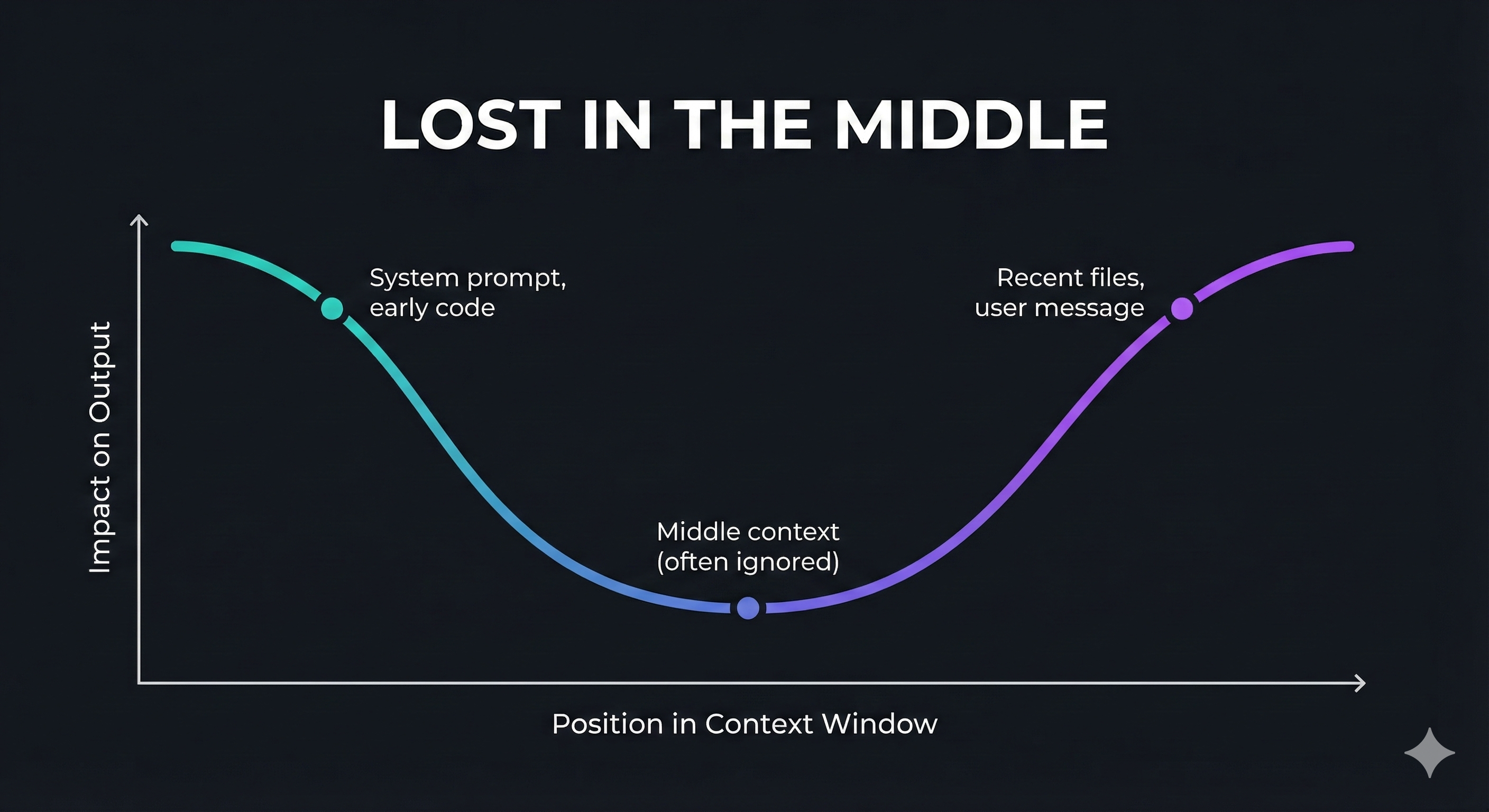
Additionally, our code isn’t the only thing consuming context window space. Our context window is going to be filled by:
MCP Servers
Every MCP server you add is going to take some amount of space in your context window just by being available and present. Every MCP tool definition comes with:
- Tool name (e.g., mcp__ynab__get_transactions)
- Description - an explanation as to what the tool does so that the LLM can understand when it might be needed.
- Parameter Schema - JSON schema definition of all the parameters, types, descriptions and constraints.
- Usage notes - additional instructions and potentially examples to guide the LLM during its tool choice.
Let’s take a look at an example from the YNAB MCP I built and discussed in Build Efficient MCP Servers: Three Design Principles.
{
    "name": "mcp__ynab__get_transactions",
    "description": "Get transactions from YNAB budget.\n\n    Retrieves transactions with optional filtering by date
   range, account, or category.\n    Returns transaction details including date, amount, payee, category, and
  memo.\n\n    Use this tool when you need to:\n    - View recent transactions\n    - Find transactions in a
  specific date range\n    - Filter transactions by account or category\n    - Check transaction details for
  reconciliation\n\n    Args:\n        budget_id: Budget ID or 'last-used' for default budget\n        since_date:
  Optional start date (YYYY-MM-DD format)\n        until_date: Optional end date (YYYY-MM-DD format)\n
  account_id: Optional account ID to filter by specific account\n        category_id: Optional category ID to filter
   by category\n        type: Optional transaction type ('uncategorized', 'unapproved')\n\n    Returns:\n
  JSON array of transactions with:\n        - id: Transaction ID\n        - date: Transaction date\n        -
  amount: Amount in milliunits (divide by 1000 for dollars)\n        - memo: Transaction memo\n        - cleared:
  Cleared status\n        - approved: Approval status\n        - payee_id: Payee ID\n        - payee_name: Payee
  name\n        - category_id: Category ID\n        - category_name: Category name\n        - account_id: Account
  ID\n        - account_name: Account name\n\n    Example usage:\n        Get all transactions from November 2024:\n
          since_date='2024-11-01', until_date='2024-11-30'\n\n        Get recent uncategorized transactions:\n
    type='uncategorized'\n\n    Note: Amounts are returned in milliunits. Divide by 1000 to get dollar amounts.\n
   ",
    "parameters": {
      "type": "object",
      "properties": {
        "budget_id": {
          "type": "string",
          "description": "Budget ID or 'last-used' for default budget"
        },
        "since_date": {
          "type": "string",
          "description": "Optional start date (YYYY-MM-DD format)",
          "format": "date"
        },
        "until_date": {
          "type": "string",
          "description": "Optional end date (YYYY-MM-DD format)",
          "format": "date"
        },
        "account_id": {
          "type": "string",
          "description": "Optional account ID to filter by"
        },
        "category_id": {
          "type": "string",
          "description": "Optional category ID to filter by"
        },
        "type": {
          "type": "string",
          "enum": ["uncategorized", "unapproved"],
          "description": "Optional transaction type filter"
        }
      },
      "required": ["budget_id"],
      "title": "GetTransactionsArguments"
    }
  }
Token Breakdown
| Component | Tokens |
|---|---|
| Tool name | 8 |
| Description (entire string) | 430 |
| Parameters schema | 225 |
| TOTAL | ~663 tokens |
This one tool definition takes up about 663 tokens. Not terrible on its own, but my YNAB MCP has about 15 tools. As you add more and more MCP servers to your stack you are consuming more and more of your context window from tool definitions alone. So it’s important to be careful not to overload your coding assistant with too many MCP servers.
The community has been exploring new ways to make MCP servers more context efficient. One approach Anthropic has written about is allowing code execution within MCP servers. You can learn more about this in Code execution with MCP: Building more efficient agents but the short version is instead of having an MCP server expose lots of different tools, it exposes a single tool or handful of tools which can then execute their own code in a sandboxed environment to achieve results on its own. Anthropic also recently announced a beta feature for advanced tool use in Claude. One of the stand out updates here is moving away from a static tool list to being able lazily load tool definitions via a tool search tool.
Both of these are in their early stages so we’ll continue to need to be careful about how many MCP servers we add to our coding agents and how much of the context window they consume. With that out of the way let’s take a look at a real world scenario of a context window in a development environment and how we can make the best out of it.
A View Into Your Context Window
Claude Code provides us with a command we can run within a session called /context. This command will report back the current state of your context window including how much space everything is taking up. Let’s take a look at the output of /context within Tracewell AI:
Context Usage
⛁ ⛀ ⛁ ⛁ ⛁ ⛁ ⛁ ⛁ ⛁ ⛁   claude-sonnet-4-5-20250929 · 101k/200k tokens (51%)
⛁ ⛁ ⛁ ⛁ ⛁ ⛁ ⛁ ⛁ ⛁ ⛁
⛁ ⛁ ⛁ ⛁ ⛁ ⛁ ⛁ ⛁ ⛀ ⛶   ⛁ System prompt: 3.1k tokens (1.6%)
⛶ ⛶ ⛶ ⛶ ⛶ ⛶ ⛶ ⛶ ⛶ ⛶   ⛁ System tools: 19.8k tokens (9.9%)
⛶ ⛶ ⛶ ⛶ ⛶ ⛶ ⛶ ⛶ ⛶ ⛶   ⛁ MCP tools: 26.5k tokens (13.3%)
⛶ ⛶ ⛶ ⛶ ⛶ ⛶ ⛶ ⛶ ⛶ ⛶   ⛁ Custom agents: 2.8k tokens (1.4%)
⛶ ⛶ ⛶ ⛶ ⛶ ⛶ ⛶ ⛶ ⛶ ⛶   ⛁ Memory files: 4.0k tokens (2.0%)
⛶ ⛶ ⛶ ⛶ ⛶ ⛶ ⛶ ⛝ ⛝ ⛝   ⛁ Messages: 8 tokens (0.0%)
⛝ ⛝ ⛝ ⛝ ⛝ ⛝ ⛝ ⛝ ⛝ ⛝   ⛶ Free space: 99k (49.4%)
⛝ ⛝ ⛝ ⛝ ⛝ ⛝ ⛝ ⛝ ⛝ ⛝   ⛝ Autocompact buffer: 45.0k tokens (22.5%)

MCP tools · /mcp
└ mcp__memory__create_entities (memory): 686 tokens
└ mcp__memory__create_relations (memory): 689 tokens
└ mcp__memory__add_observations (memory): 668 tokens
└ mcp__memory__delete_entities (memory): 612 tokens
└ mcp__memory__delete_observations (memory): 666 tokens
└ mcp__memory__delete_relations (memory): 690 tokens
└ mcp__memory__read_graph (memory): 568 tokens
└ mcp__memory__search_nodes (memory): 607 tokens
└ mcp__memory__open_nodes (memory): 609 tokens
└ mcp__sentry__whoami (sentry): 602 tokens
└ mcp__sentry__find_organizations (sentry): 735 tokens
└ mcp__sentry__find_teams (sentry): 1.0k tokens
└ mcp__sentry__find_projects (sentry): 999 tokens
└ mcp__sentry__find_releases (sentry): 1.2k tokens
└ mcp__sentry__get_issue_details (sentry): 1.4k tokens
└ mcp__sentry__get_trace_details (sentry): 1.3k tokens
└ mcp__sentry__get_event_attachment (sentry): 1.3k tokens
└ mcp__sentry__update_issue (sentry): 1.5k tokens
└ mcp__sentry__search_events (sentry): 1.5k tokens
└ mcp__sentry__find_dsns (sentry): 1.0k tokens
└ mcp__sentry__analyze_issue_with_seer (sentry): 1.3k tokens
└ mcp__sentry__search_docs (sentry): 1.8k tokens
└ mcp__sentry__get_doc (sentry): 768 tokens
└ mcp__sentry__search_issues (sentry): 1.5k tokens
└ mcp__sentry__use_sentry (sentry): 968 tokens
└ mcp__context7__resolve-library-id (context7): 887 tokens
└ mcp__context7__get-library-docs (context7): 957 tokens

Custom agents · /agents
└ rails-backend-expert (Project): 444 tokens
└ cybersecurity-expert (Project): 287 tokens
└ prompt-engineer (Project): 609 tokens
└ tailwind-viewcomponent-expert (Project): 417 tokens
└ product-strategy-advisor (Project): 608 tokens
└ regulatory-510k-consultant (Project): 459 tokens

Memory files · /memory
└ User (/home/dgalarza/.claude/CLAUDE.md): 10 tokens
└ Project (/home/dgalarza/Code/tracewell.ai/CLAUDE.md): 4.0k tokens

SlashCommand Tool · 16 commands
└ Total: 2.7k tokens
As you can see this gives us a nice detailed view of our context window, including what percentage of the context window is currently available and a breakdown of what is taking up space. From it we can see that my MCP tools are taking up 26.5k tokens which is about 13.3% of the Claude Sonnet 4.5 context window. Aside from that, we can see that the Custom agents that are defined and available are taking up about 2.8k tokens, my project’s CLAUDE.md is 4k tokens and about 22% of the context window is reserved for autocompacting.
What is autocompacting?
In order to understand autocompacting we first need to understand how a typical conversation flows within the Anthropic API. By default, every call to the Anthropic Claude API has no recollection of previous parts of a conversation. Instead as the consumer of the API we need maintain that conversation history and provide it to the API. Take a look at the following diagram:
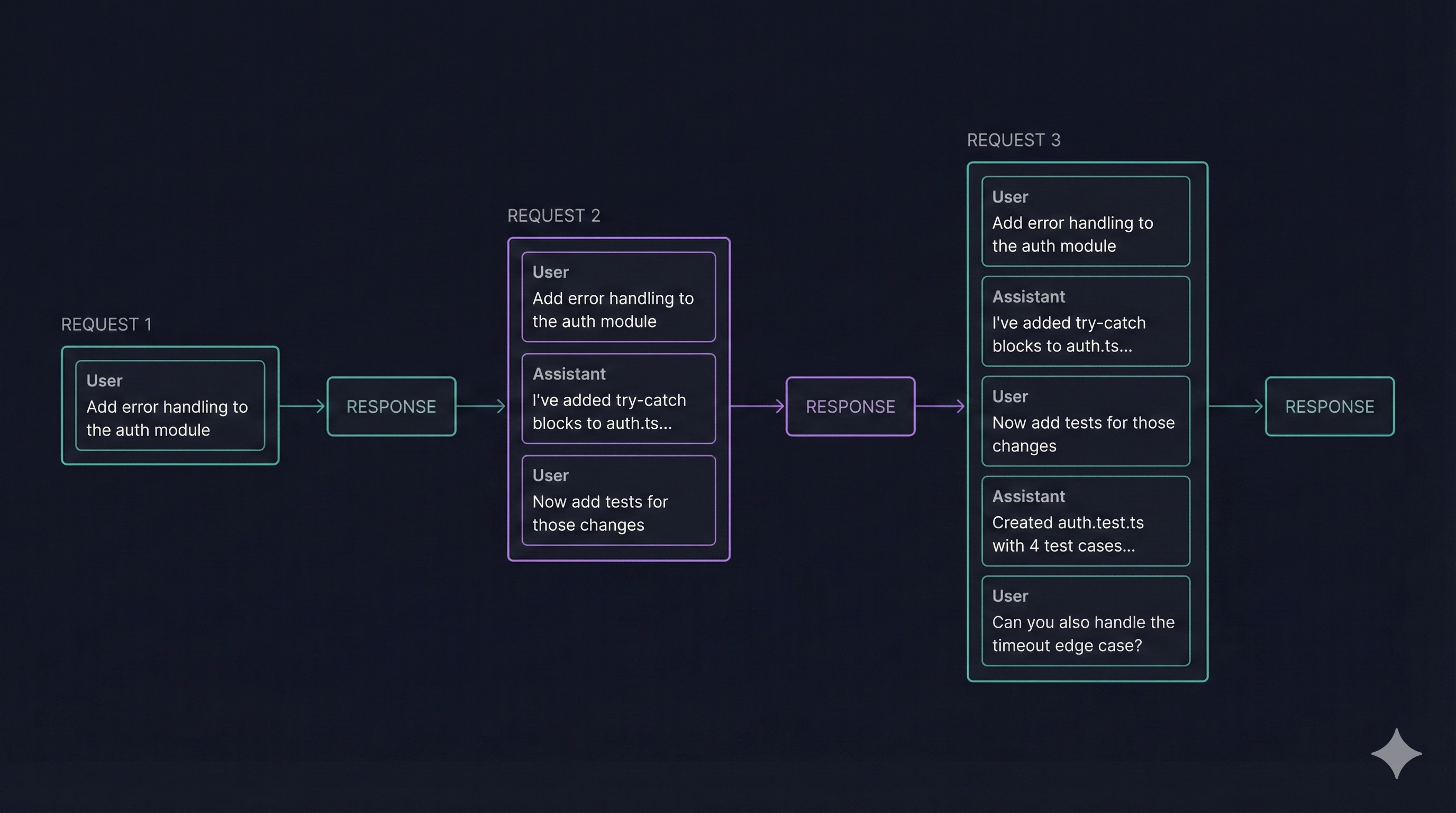
You can see that the first request kicks off the conversation with “Add error handling to the auth module”. From there we get a response back from the LLM with the result of what it did. When the user then continues the conversation in request 2, we can see they say “Now add tests for those changes”. You can see here though that we actually end up sending the full conversation history, with our first message, along with the response from the LLM and now our new message. This is a simplified example which doesn’t include tool calling. Any tool call requests would also be in this history as well as the results from tool calling. As your conversation gets longer and longer, more and more of the context window is being taken up. As you approach the limit of the context window space must be freed up. One way to do this is compaction.
Compacting the context window is a context engineering technique to compress a long running conversation or session by summarizing the conversation in order to free up space. This summarization is typically handled by an LLM. This generated summary then becomes the basis of the remainder of the conversation. Compacting the conversation history can sometimes work well. However it’s not an exact science and you are beholden to the LLM to identify the correct things to include in the summary. If you’ve ever had a long running conversation with Claude Code and started feeling like things have started to go off the rails, you might have experienced this. In the long conversation you might end up with multiple autocompact calls where now the LLM is summarizing a summarization along with the rest of the conversation.
Warning signs of problematic autocompact:
- Claude forgets decisions you made earlier in the conversation
- Claude repeats work it already completed
- Claude asks questions you already answered
- Solutions start contradicting earlier approaches
When you notice these symptoms, it’s usually time for a /clear and a fresh start rather than continuing to fight against a degraded context.
Managing Your Context Window
Now that we understand what the context window is, how a conversation’s history occurs and how it impacts the context window let’s explore different ways to manage the context window to make the most out of it.
Delegating to Subagents
Claude Code has the ability to spin off “subagents” when it’s working. These subagents each have their own context window which is separate from the main conversation. This gives us two advantages. First, the subagent’s context window isn’t cluttered with our previous conversation history. Second, and this is the flip side, our main conversation isn’t cluttered with all the details of whatever the subagent was instructed to work on. Instead, it reports back its results. You can see this in action with Claude Opus 4.5 whenever you plan something. It typically delegates its tasks out to subagents to help aid with the plan.
⏺ 3 Explore agents finished (ctrl+o to expand)
   ├─ Explore Tracewell Agent workflow · 23 tool uses · 104.5k tokens
   │  ⎿ Done
   ├─ Explore Tracewell DHF extractions · 28 tool uses · 108.0k tokens
   │  ⎿ Done
   └─ Explore eval framework · 24 tool uses · 101.8k tokens
      ⎿ Done
You can also instruct Claude to invoke a subagent explicitly. Some examples:
- “Have a subagent do a code review of this branch against main”
- “Use a subagent to explore how authentication works in this codebase”
- “Spawn a subagent to research different caching strategies for this use case”
When the subagent completes, you’ll see a summary like this in your main conversation:
⏺ Task agent finished · 15 tool uses · 52.3k tokens
  ⎿ The code review found 3 issues: [summary of findings...]
Notice that the subagent used 52k tokens of its own context, but your main conversation only receives the summary. This is the key benefit: the detailed work happens in isolation.
I’ve found subagents work best for self-contained tasks that require reading lots of files. Code reviews are a natural fit. The subagent can dig through diffs without polluting your main context. The same goes for codebase exploration when you’re trying to understand how an unfamiliar feature works across multiple modules. Research tasks also work well here; you can have a subagent investigate implementation options and report back before you commit to an approach.
Using Custom Agents
Custom agents take subagents to another level. They allow us to define a custom agent with a persona and expertise area which makes use of the same functionality of subagents where they have their own context window. Additionally we can also define what tools it has access to. This is useful if you are defining an agent that you know doesn’t need specific tools so their tool definitions don’t need to take space in the context window.
An agent is a markdown file which lives in either ~/.claude/agents or .claude/agents. You can provide it a name, a description, a model, and tools which it is allowed to use. This is all handled via YAML frontmatter. After the frontmatter you define the agent itself.
Let’s take a look at a practical example.
In Tracewell I have defined a few subagents that you can see in the earlier /context output. The rails-backend-expert doesn’t need access to the Linear MCP so I can choose not to give the agent access to it or any of its tools. This is handled by setting an allow list of what tools you want to give the model access to:
---
name: rails-backend-expert
description: Use this agent when working on Ruby on Rails backend code, including models, controllers, services, jobs, database migrations, API endpoints, background processing, or any server-side Ruby logic.
tools: Bash, Glob, Grep, Read, Edit, Write, NotebookEdit, WebFetch, TodoWrite, WebSearch, BashOutput, KillShell, AskUserQuestion, Skill, SlashCommand, mcp__memory__create_entities, mcp__memory__create_relations, mcp__memory__add_observations, mcp__memory__delete_entities, mcp__memory__delete_observations, mcp__memory__delete_relations, mcp__memory__read_graph, mcp__memory__search_nodes, mcp__memory__open_nodes, mcp__context7__resolve-library-id, mcp__context7__get-library-docs
model: sonnet
---

You are a Ruby on Rails backend expert. Your role is to help with...
The agent’s full persona and instructions follow after the frontmatter. I recommend using the /agents command to get started. From there Claude will walk you through creating your first agent. When doing so Claude will ask you if you want Claude to generate or manually configure the agent. I recommend going with its recommended approach which is to have Claude create the agent. You can provide a high level prompt and it will then generate the full agent description for you. As part of the wizard for creating the agent Claude will ask you what tools you want the agent to have access to.
Claude Skills
In October 2025 Anthropic announced Agent Skills a way of encapsulating domain expertise or workflows for agents to follow. Skills are organized in folders with a core SKILL.md file which has frontmatter that has required metadata such as the name and the description. The body of the SKILL.md contains the instruction set of the skill itself.
When Claude Code starts, it loads the name and description of every skill available into its context via the system prompt. This allows Claude to use progressive disclosure in determining when to use a skill without loading the entire thing into its context window. This can be a powerful tool that can even potentially replace some MCP servers. This is possible because skills can also contain scripts that Claude can run. Instead of having to always expose tools into the context window via an MCP server you can provide a skill which has scripts that it can run that only get added to the agent’s context window when it is useful.
A great example of this is the Playwright Skill for Claude Code by Bryan Lackey. Previously if you wanted to easily add Playwright to Claude Code for interfacing with your web application, you’d add the playwright-mcp. The playwright-mcp adds 22 tools which consume about 14.3k tokens, which is 7.2% of your context window just by being available.
The skill, by contrast, only adds about 200 tokens at startup for its name and description. The full SKILL.md (around 4-5k tokens) only loads when you actually invoke the skill. If you use Playwright in maybe one out of every five sessions, you’re saving roughly 10k tokens in the sessions where you don’t need it.
Using clear
Another tool at your disposal is to use the /clear command often. This command resets / empties the context window providing a fresh start. I highly recommend that you do this often especially when you have completed a distinct task and are moving onto a new one where the previous conversation history is no longer needed or useful.
Compacting the conversation manually
Along with autocompact you can also manually choose when to compact a conversation. You can do this by running /compact. It takes an optional argument which is instructions on how Claude should perform the compaction. You can guide Claude to make sure that it captures certain information while generating its summary and compacting the conversation. I recommend this when you have made significant progress on your work and are moving onto some related work. Perhaps Claude broke up the work into multiple phases and you just completed phase 1. You could:
- Use
/clearto reset the context window. However, if you didn’t persist the plan / TODO list somewhere you’ll start from scratch. - Continue until autocompact kicks in and you let the LLM do the heavy lifting of summarizing / compacting the conversation.
Instead, I’d recommend using the /compact command and instruct Claude to summarize the progress you’ve made so far and start with a “fresh” context window on the next phase of work. I say “fresh” since we aren’t fully clearing the context window but are compressing the previous conversation.
Being Strategic About File Reads
It’s easy to overlook how quickly file reads consume context. Every time Claude reads a file, that content gets added to the conversation history. Large files, broad grep results, or reading several files in sequence can eat through your available context faster than you’d expect.
A few things I’ve learned to do:
- When I know roughly where something is, I’ll point Claude to specific line ranges rather than having it read entire files. For example: “Look at the
authenticatemethod inapp/services/auth_service.rbaround lines 45-80” instead of just “check the auth service” - I try to use targeted grep patterns before asking Claude to read files. Narrowing down candidates first means fewer files loaded into context. For example, instead of “find where we handle webhook failures”, I might say “grep for
webhook.*failorhandle.*webhookin app/services/ and show me the matches before reading any files.” This way Claude identifies the 2-3 relevant files first rather than speculatively reading 10 service files looking for the right one. - For orientation questions like “what does this module do?”, asking Claude to summarize rather than read the whole thing can save significant tokens
This becomes especially important in larger codebases where a single exploration session can involve dozens of file reads.
Optimizing Your CLAUDE.md
Your project’s CLAUDE.md file loads into every conversation, so it’s worth keeping it lean. Looking back at my /context output, my project’s CLAUDE.md takes up 4k tokens, which is 2% of my context window before I’ve even started working.
A few things to keep in mind:
- Bullet points tend to be more token-efficient than prose
- Put the most critical instructions at the beginning since Claude pays more attention to the start and end of content (that “lost in the middle” problem again)
- Consider whether instructions belong at the project level or could live in your user-level
~/.claude/CLAUDE.mdinstead - Periodically audit for outdated instructions that no longer apply
It’s a balancing act. You want enough context for Claude to understand your project’s conventions, but not so much that you’re burning tokens on rarely-relevant details.
Best Practices for Context Window Management
- Monitor regularly - Run
/contextat the start of each session to understand your baseline usage - Audit your MCP servers - Remove any MCP servers you haven’t used recently; each one consumes tokens just by existing
- Prefer skills over MCP servers - When building new functionality, consider skills first for better context efficiency through progressive disclosure
- Clear between tasks - Use
/clearliberally when switching between unrelated work - Strategic compacting - Use
/compactwith custom instructions when transitioning between related phases of work - Delegate complex work - Use subagents for self-contained tasks to keep their context isolated from your main conversation
Conclusion
Context management isn’t just about avoiding limits; it’s about keeping your conversations focused and effective. A cluttered context window leads to degraded responses, just like a cluttered desk makes it harder to find what you need.
The key takeaways: monitor your usage with /context, delegate to subagents for isolated work, and use /clear liberally between tasks. When possible, prefer skills over MCP servers for better context efficiency through progressive disclosure.
Start by running /context in your next Claude Code session to see where your tokens are going. You might be surprised by what you find.
If you’ve discovered techniques that work well for managing your context window, I’d love to hear about them. Reach out on LinkedIn or X.
Additional Reading
- Most devs don’t understand how context windows work - Deep dive into context window fundamentals and practical management strategies
More on building real systems
I write about AI integration, architecture decisions, and what actually works in production.
Occasional emails, no fluff.